
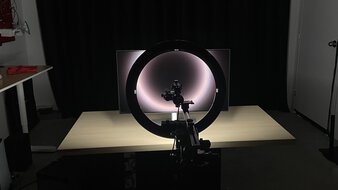
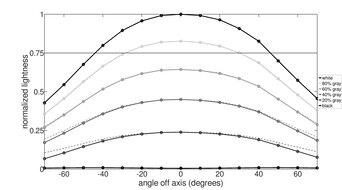
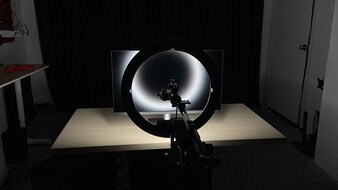
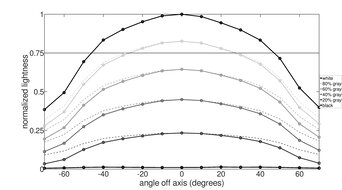
Using two monitors in your setup offers many benefits for multitasking. Some brands and retailers sell two-in-one monitor bundles, but those are usually cheap displays that aren't special. So, if your budget allows for it, getting two units of a better model is the best way to go. While you can choose any size you prefer, 24- and 27-inch screens are commonly used in a dual setup, as larger displays can occupy too much space. Other factors impact the screen's performance in this setup, like its viewing angle to ensure a consistent image from the sides, and an ergonomic stand to make it easy to adjust.
Before buying anything, you'll want to think about how to set up dual monitors. Most modern computers or laptops don't have issues outputting two signals at once, provided they have two video outputs. Otherwise, you'd need to get a dock or adapter to split a signal from your computer into two. That said, if your PC only has one output and you don't have a splitter, then one of the monitors you purchase needs to support daisy chaining to a secondary screen. This is done through a video output, whether it's over DisplayPort or USB-C, so it's important to check if the monitor includes this feature.
We've bought and tested over 400 monitors, and below are our recommendations for the best secondary monitor. See our recommendations for the best USB-C monitors and the best vertical monitors. However, if you think a dual monitor setup isn't right for you, it may be worth looking for the best ultrawide monitors instead.
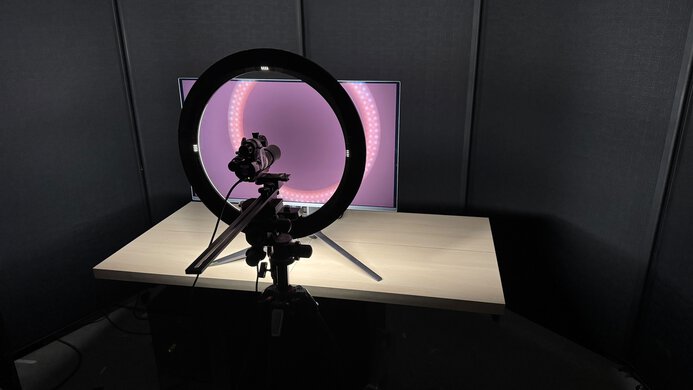
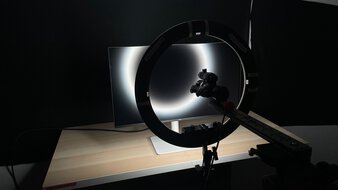
We buy and test more than 30 monitors each year, all of which we purchase ourselves, without cherry-picked units or samples. We put a lot into each unbiased, straight-to-the-point review, and there's a whole process from purchasing to publishing, involving multiple teams and people. We do more than just use the monitor for a week; we use specialized, custom tools to measure various aspects and deliver objective, data-driven results. We also consider multiple factors before making any recommendations, including the monitor's cost, its performance compared to the competition, and whether it's easy to find.
-
Best Monitor For Dual Setup
 OfficeEditingSDR PictureHDR PictureColor AccuracySDR BrightnessErgonomicsSize27"Panel TypeLCDSub-TypeIPSMax Refresh Rate120 HzNative Resolution3840 x 2160See all our test resultsDaisy Chaining
The best monitor for dual setup that we've tested is the Dell U2725QE. It's a high-end 4k monitor with a ton of features, including a large USB hub. What makes it such a great choice for a multi-monitor setup is that it includes both Thunderbolt and DisplayPort video outputs. This means you can connect up to two monitors directly to this one. It's something you can use as a central hub in your multi-monitor setup, thanks to these, and you won't need to spend extra on an external video dock.
Aside from that, it has five total USB-C ports and five USB-A ports, so you can connect all kinds of devices to it. It also has a KVM switch, making it easy to switch between computers and use the same devices on both. Besides its feature-filled hub, it has good picture quality with a high 4k resolution that results in sharp image and text clarity. It also gets bright enough to fight glare in most rooms, and its wide viewing angle keeps the image consistent even when you aren't viewing it directly from the front. Plus, it comes with an extremely ergonomic stand, making it very easy to adjust in your setup.
-
Best Mid-Range Monitor For Dual Setup
OfficeEditingSDR PictureHDR PictureColor AccuracySDR BrightnessErgonomicsSize27"Panel TypeLCDSub-TypeIPSMax Refresh Rate60 HzNative Resolution3840 x 2160See all our test resultsDaisy ChainingIf you don't have the budget for the Dell U2725QE, or simply don't need all its premium perks, then consider a lower-end, cheaper option, like the ASUS ProArt Display PA279CRV. The main trade-off for getting this model at a lower cost is that it has fewer features than the Dell. It has fewer USB ports and no KVM switch, so it's not as convenient to use if you want to connect two computers to it and switch between them frequently. However, it has useful perks, such as a DisplayPort output for daisy chaining another screen. Plus, one of its USB-C ports supports DisplayPort Alt Mode with 90W of power delivery, so it can charge your laptop and display an image from it with one cable.
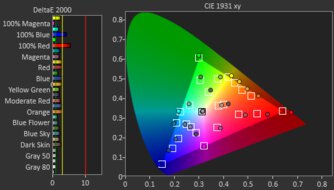
Despite the differences in features, it has a similar picture quality to the Dell, as it's another 4k, 27-inch display. Text looks sharp, visibility isn't an issue in most well-lit rooms thanks to its bright screen, and it has a wide viewing angle that's useful if you're viewing the display from the sides. Plus, it has picture modes for content creators using different color spaces, including up to Rec. 2020, and it's very accurate in its sRGB mode. This helps ensure you won't have to calibrate it for doing video or photo editing.
-
Best Lower Mid-Range Monitor For Dual Setup
OfficeEditingSDR PictureHDR PictureColor AccuracySDR BrightnessErgonomicsSize27"Panel TypeLCDSub-TypeIPSMax Refresh Rate120 HzNative Resolution3840 x 2160See all our test resultsDaisy ChainingIf you want a more cost-friendly alternative without giving up much in picture quality, then check out the Dell S2725QS. It's similar enough to the ASUS ProArt Display PA279CRV as it's another 4k, 27-inch option with similar picture quality. This means it has sharp text clarity alongside good brightness, a wide viewing angle, and colors are accurate before calibration. However, it doesn't have as many picture modes for various color spaces as the ASUS, which is something to consider if you're a content creator and you don't want to pay for a full calibration.
That said, the biggest difference between this monitor and the ASUS is that it doesn't have a USB hub, so you can't connect any devices directly to it. It also doesn't have any video outputs, so you can't daisy-chain a second monitor to this one. Due to this, you have to have a dock or make sure your computer has enough video ports to connect two monitors. You can also check out the Dell S2725QC if you prefer something with a USB hub, but it doesn't support daisy chaining either and costs more than the S2725QS.
-
Best Budget Monitor For Dual Setup
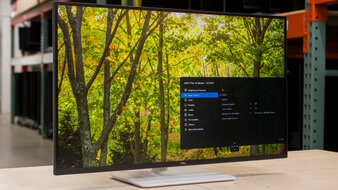
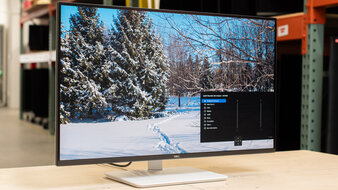
OfficeEditingSDR PictureHDR PictureColor AccuracySDR BrightnessErgonomicsSize27"Panel TypeLCDSub-TypeIPSMax Refresh Rate144 HzNative Resolution2560 x 1440See all our test resultsDaisy ChainingIf you're on a budget and find the Dell S2725QS still too expensive, or can't find it on sale, the Dell S2725DC is a great budget monitor. It's different from the S2725QS because it has a lower 1440p resolution. While this means that text doesn't look as sharp, there are a few advantages to using a lower-resolution display, like it being less demanding on your computer. This helps if you have an entry-level laptop that struggles to output two high-resolution signals.
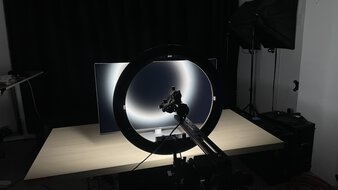
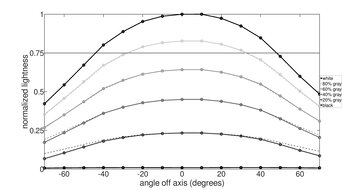
Like the S2725QS, it doesn't have a video output for daisy chaining, so your computer needs to have two video outputs, or you need an external dock. It at least has a USB hub, and you can quickly connect a laptop over USB-C thanks to DisplayPort Alt Mode. It provides 65W of power to keep most laptops charged while you're working. Besides that, it comes with a very ergonomic stand and has a wide viewing angle, which is ideal if you're not viewing it from directly in front. It's also a good choice to use in a well-lit room because it gets fairly bright, and the screen coating reduces glare well.









Notable Mentions
-
Dell U3225QE:
The Dell U3225QE is a 4k monitor that's a larger alternative to the Dell U2725QE. It's a good choice if you want a big screen for a dual-monitor setup. However, it costs more than the U2725QE and performs similarly.
See our review -
ASUS ProArt Display PA27JCV:
The ASUS ProArt Display PA27JCV is a premium work monitor with a higher 5k resolution than the Dell U2725QE. This is something to consider if you want the higher pixel density, but two 5k monitors may be too demanding on your computer.
See our review -
Apple Studio Display 2026:
The Apple Studio Display 2026 is a high-end 5k monitor that's meant for Mac computers. It's a solid alternative over the Dell U2725QE if you want two premium screens for your MacBook or Mac mini, as it supports daisy chaining. However, it costs more than the Dell.
See our review -
Acer Nitro XV275K P5biipruzx:
The Acer Nitro XV275K P5biipruzx is a mid-range 4k monitor with better picture quality than the ASUS ProArt Display PA279CRV, thanks to its Mini LED backlighting. However, it doesn't have a video output, and it has a smaller USB hub than the ASUS.
See our review
Recent Updates
Aug 10, 2026:
We replaced the Dell S2725QC with the cheaper Dell S2725QS for consistency with other recommendations. We also removed the Dell P2425H because it's becoming hard to find, and as a result, we removed the ASUS ROG Strix XG27ACS from the Notable Mentions. We also replaced the hard-to-find KOORUI S2741LM with the Acer Nitro XV275K P5biipruzx in the Notable Mentions.
Jun 18, 2026:
In the Notable Mentions, we replaced the AOC Q27G3XMN with the Dell U3225QE, which has a higher resolution and a bigger USB hub.
May 01, 2026:
In the Notable Mentions, we added the Apple Studio Display 2026, and we replaced the Acer Nitro XV275K P5biipruzx with the KOORUI S2741LM.
Mar 12, 2026:
We replaced the ASUS ROG Strix XG27ACS with the Dell S2725DC for consistency with other recommendations. We also replaced the MSI G274QPF-QD with the XG27ACS in the Notable Mentions.
Jan 27, 2026:
We verified that all recommended monitors are available and added the Acer Nitro XV275K P5biipruzx to the Notable Mentions.
All Reviews
Our recommendations are based on what we think are the best monitors for dual setup currently available in the United States. They're adapted to be valid for most people in each price range. The rating is based on our review, feedback from visitors, and price. For example, two monitors may perform the same, but the cheaper one will be recommended. We also consider availability, as we don't recommend a monitor that's hard to find.
If you would prefer to make your own decision, here is the list of all of our monitor reviews. Be careful not to get too caught up in the details. Most monitors are good enough to please most people, and the things we fault monitors on are often not noticeable unless you really look for them.